

Setup Steps
1
Open the Jobs page
From your company dashboard, go to the Jobs page and find the job you want to score.
2
Configure criteria
Click Add Criteria on the job. The Criteria Builder walks you through setup: provide context about the role, answer a few clarifying questions, then review the generated criteria.Nova creates the first draft using criteria-writing best practices, so you do not need to design the rubric from scratch.You can edit criteria text, adjust importance levels (must have, preferred, nice to have), add or remove criteria, and refine with Nova by describing the change you want.
3
Start scoring
Click Start on the job. Nova begins processing candidates immediately and scores new applications as they come in.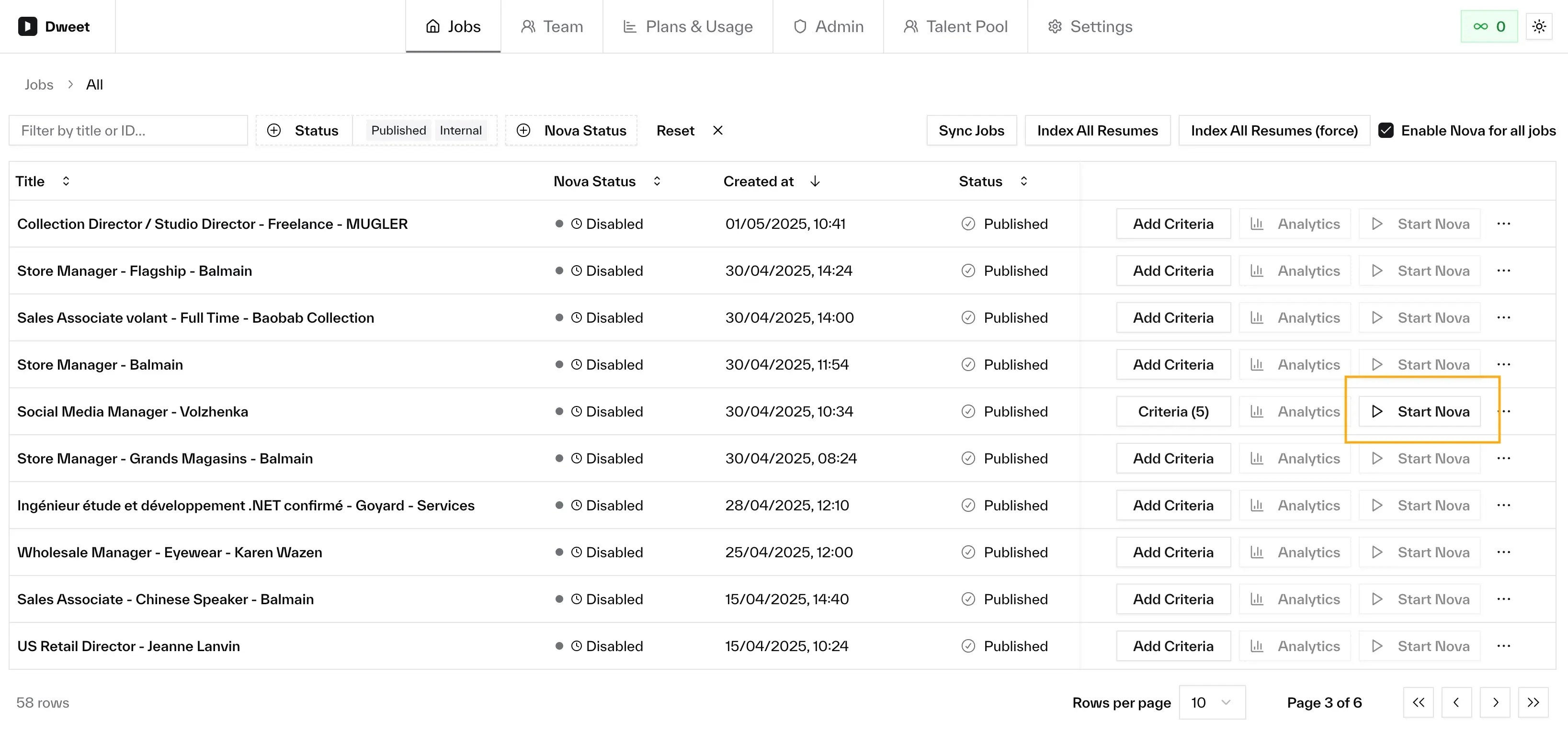
The job must be live (published or internal), and your company needs Application Review access with available allowance. The button tells you if anything’s missing.
4
Verify it's working
Once started, you should see:
- A status indicator showing Nova is active on the job
- Scores appearing on candidate profiles in your ATS
Next Steps
Understanding Scores
How to read and interpret Nova assessments
Configure Criteria
Refine criteria to improve scoring accuracy