Start your free trial
Book a call to get your Nova account set up.
How Nova Works in Ashby
Setup
Video Guide
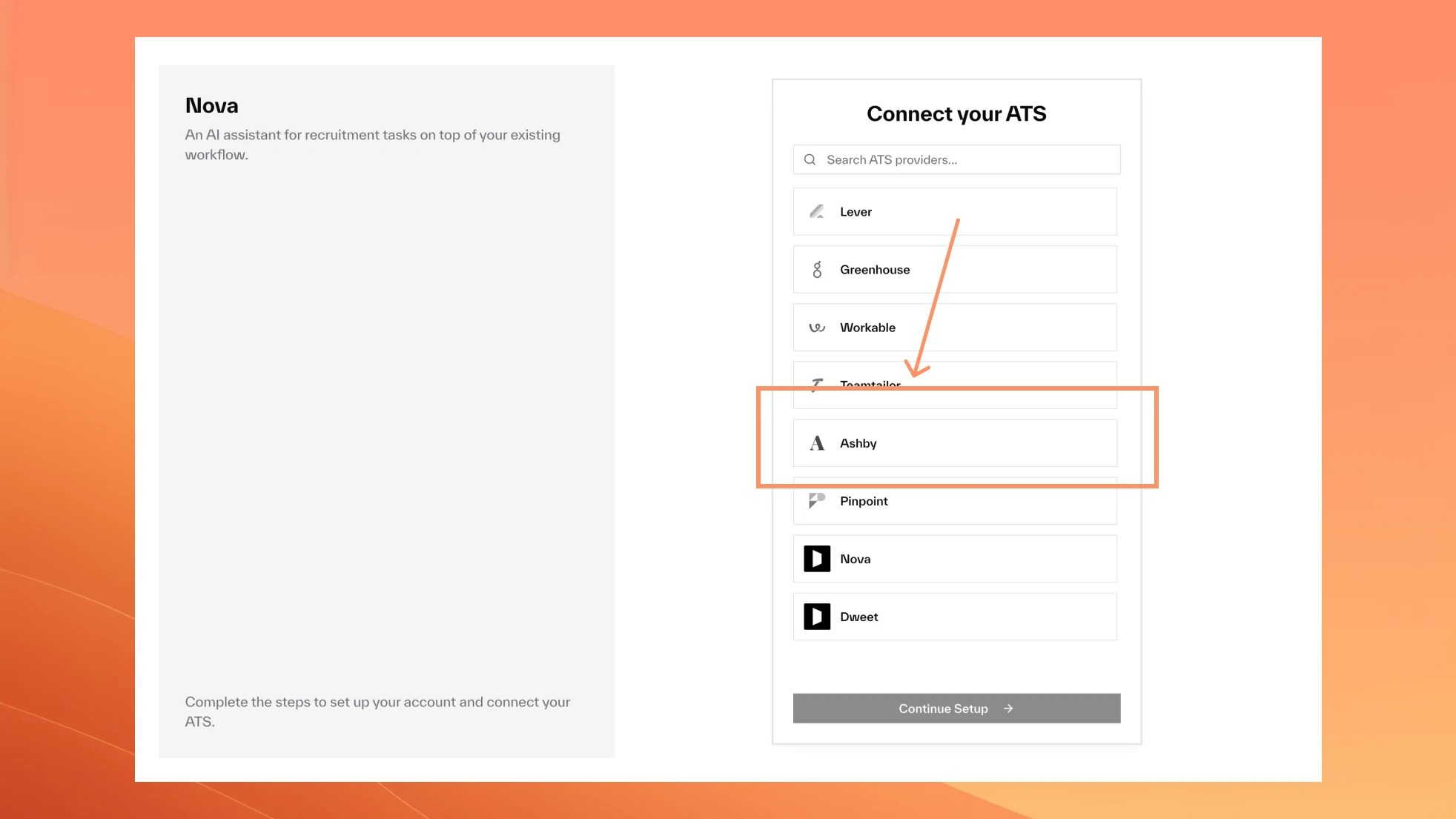
Select Ashby from ATS Providers
Set Up Your API Key
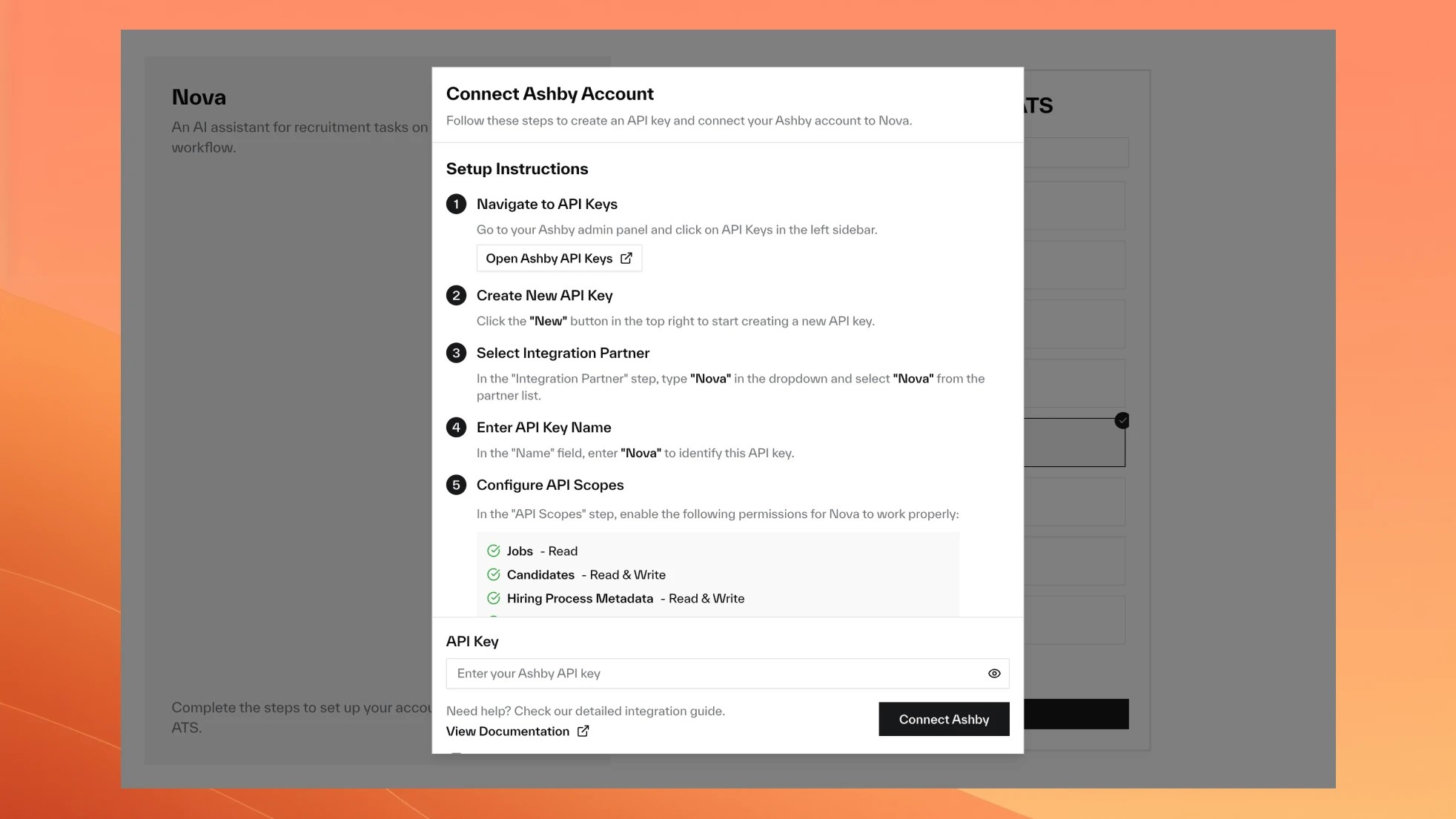
1
Navigate to API Keys
Go to Ashby API Keys.
2
Create a new API key
Click “New” in the top right corner.
3
Select integration partner
Type “Nova” in the Integration Partner dropdown and select it.
4
Name the key
Enter “Nova” in the Name field.
5
Configure API scopes
Enable these permissions:
- Jobs: Read
- Candidates: Read, Write
- Hiring Process Metadata: Read, Write
- Organization: Read
- Interviews: Read
6
Copy the API key
Click “Copy and Close”.
7
Connect to Nova
Go to Settings > Integrations > Ashby and paste the key.
Nova Scores in Ashby
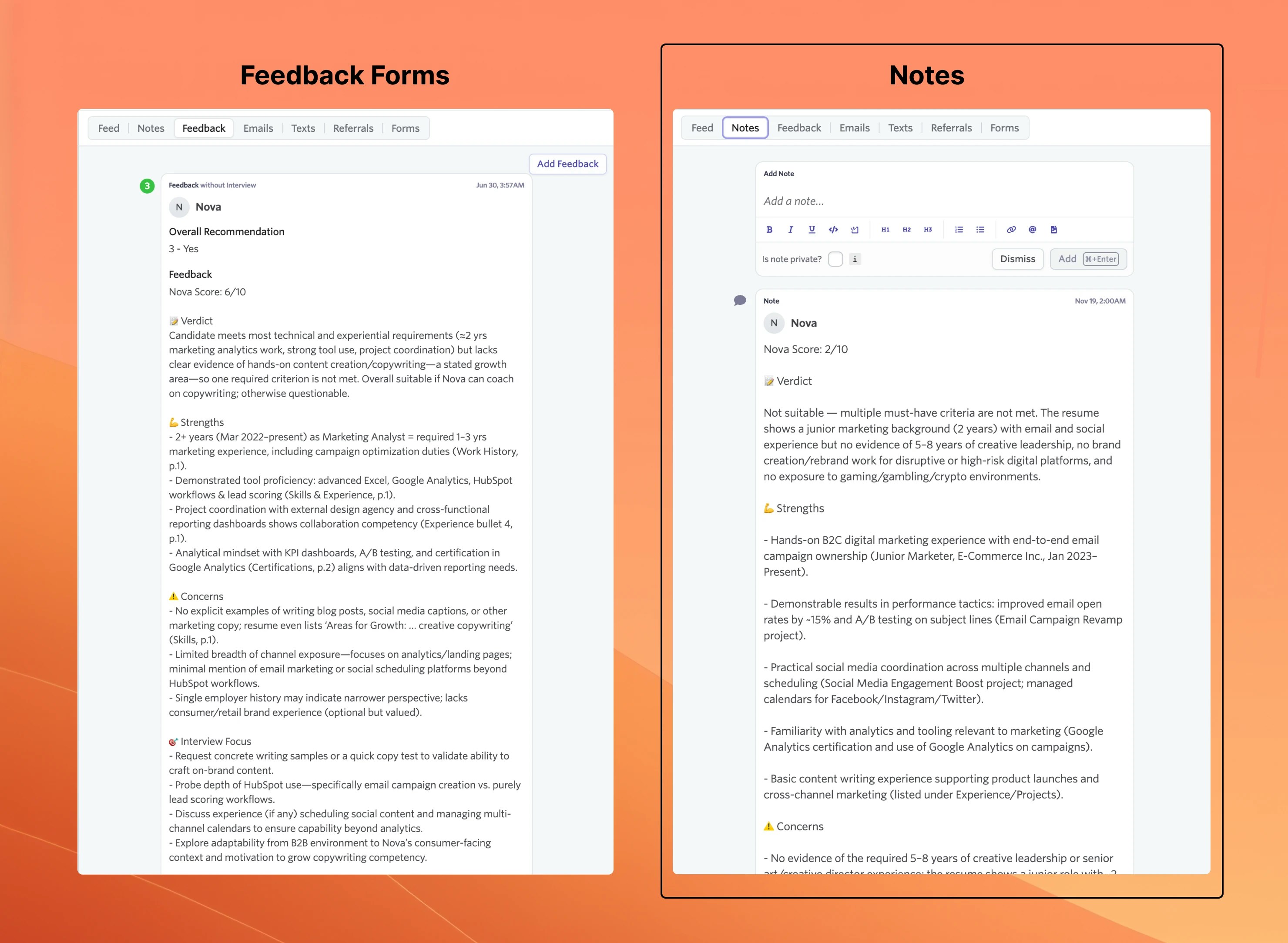
Nova adds a Nova Score custom field to each candidate for sorting and filtering. You choose where the detailed assessment appears.
Recording Method
- Tab Title
- Tab Title
The assessment appears as structured feedback with an Overall Recommendation field.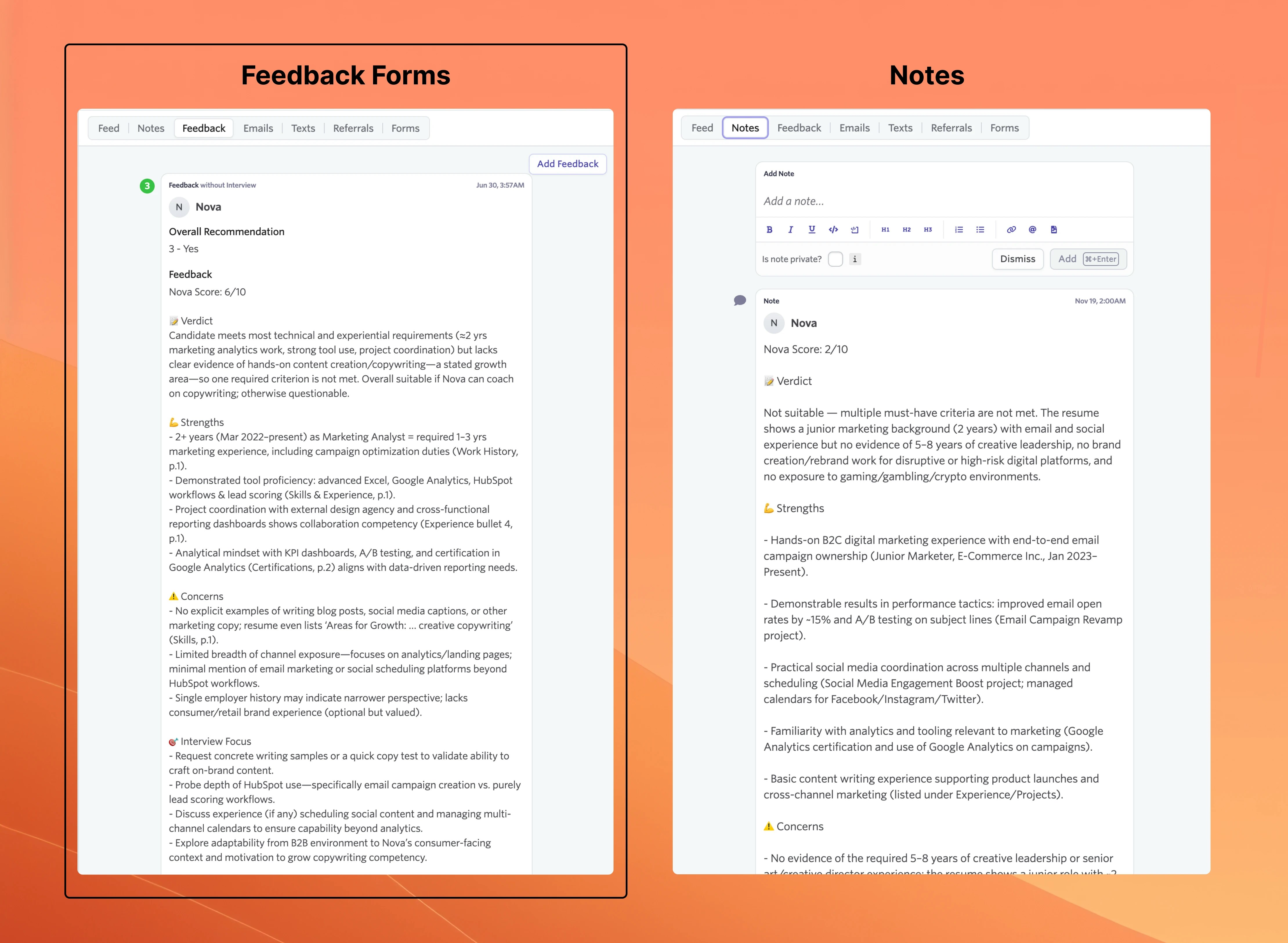
Feedback Form Setup
Only applies if you chose Feedback Forms as your recording method.
1
Create form in Ashby
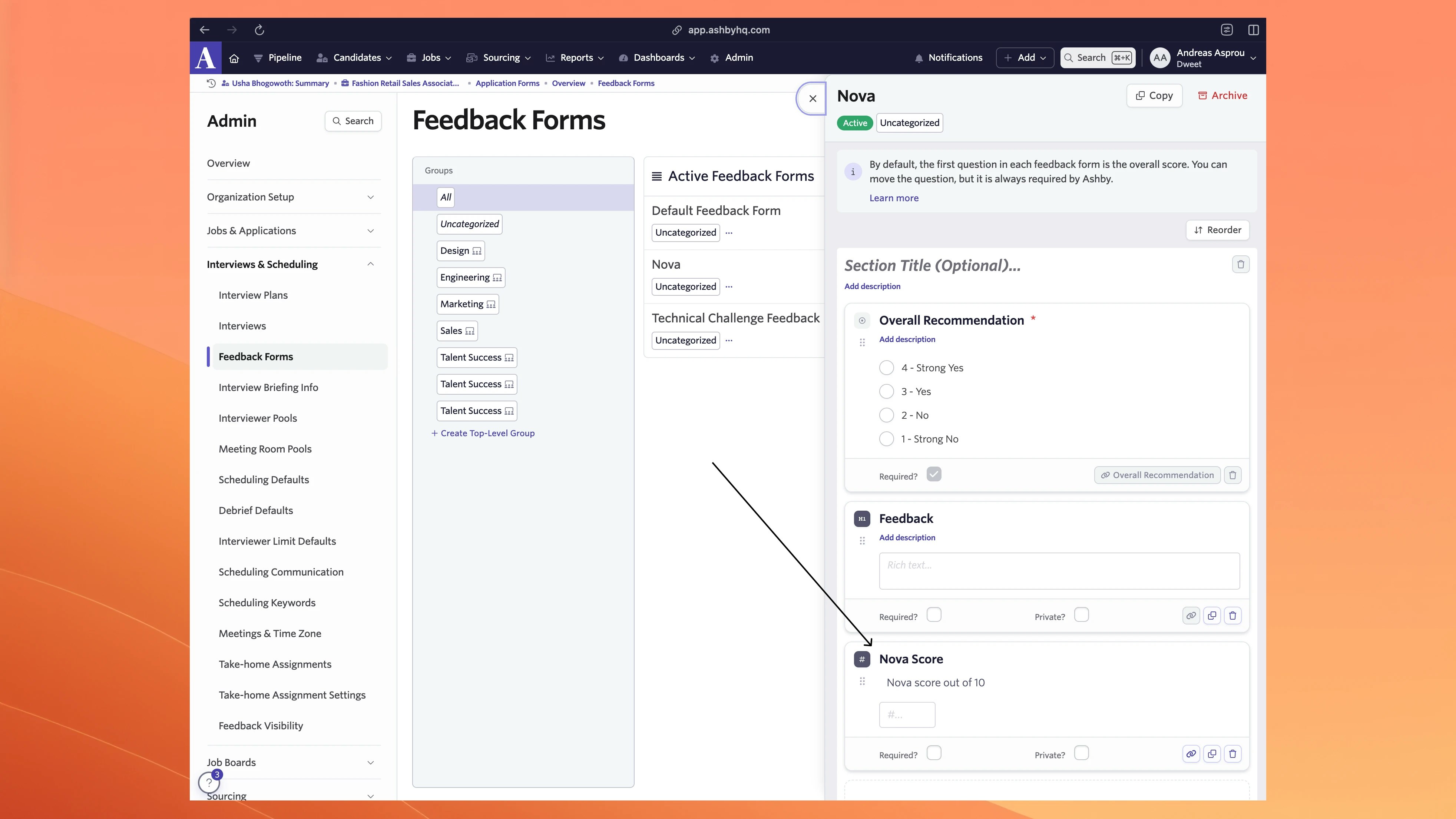
Go to Ashby Feedback Forms and create a new form.
2
Keep the Overall Recommendation field
Value Select, titled “Overall Recommendation”, 1-4 scale.
3
Keep the Feedback field
Rich Text, titled “Feedback”.
4
Add the Nova Score field
Number, titled “Nova Score”, description “Nova Score out of 10”.
5
Connect to Nova
Save in Ashby, then select the form in Nova settings.
Form Structure Example