> ## Documentation Index
> Fetch the complete documentation index at: https://nova.dweet.com/docs/llms.txt
> Use this file to discover all available pages before exploring further.
# Ashby Integration
> How to connect Nova with Ashby, configure scoring output, and filter candidates.
Book a call to get your Nova account set up.
## How Nova Works in Ashby
## Setup
### Video Guide
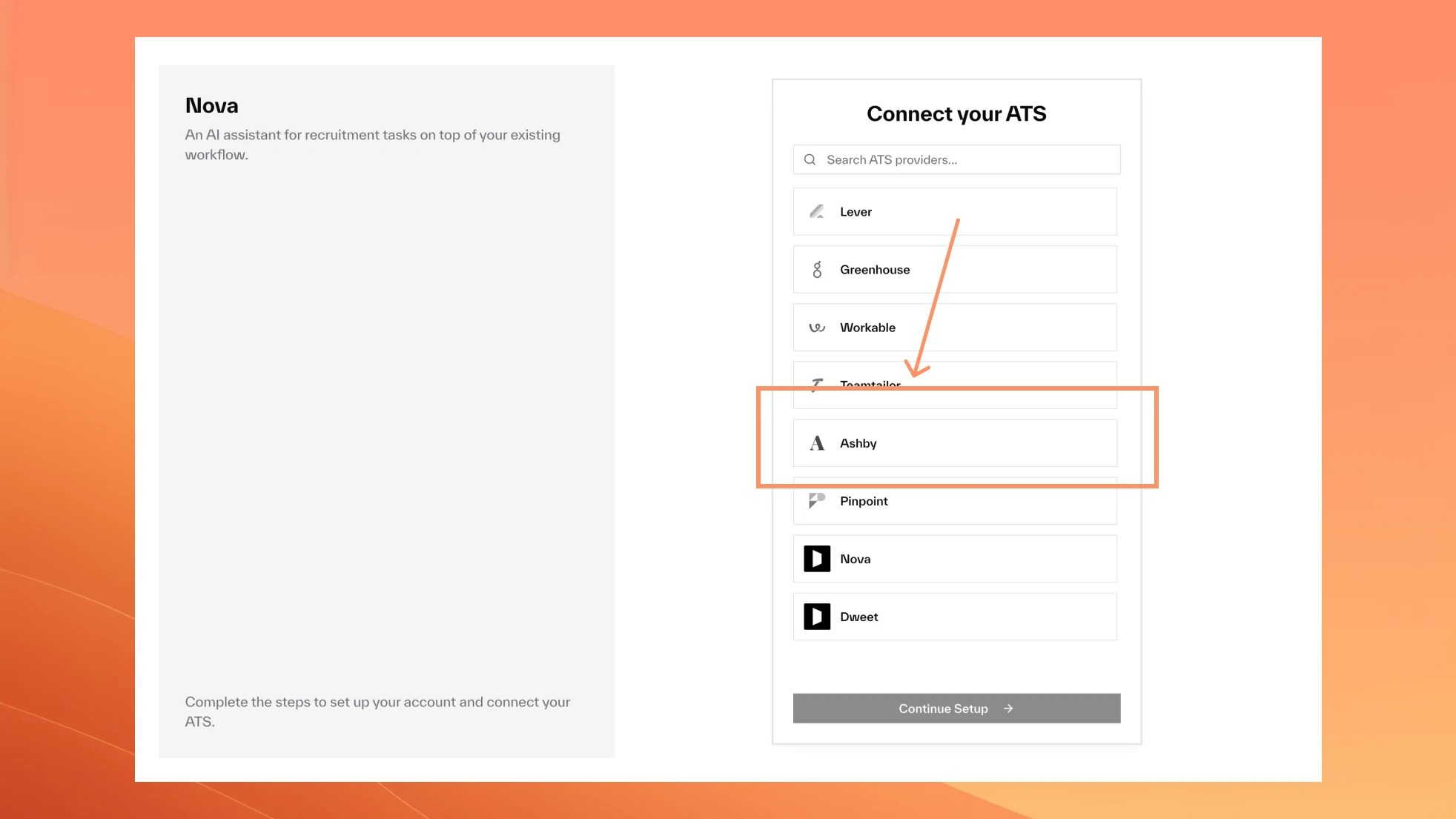
### Select Ashby from ATS Providers
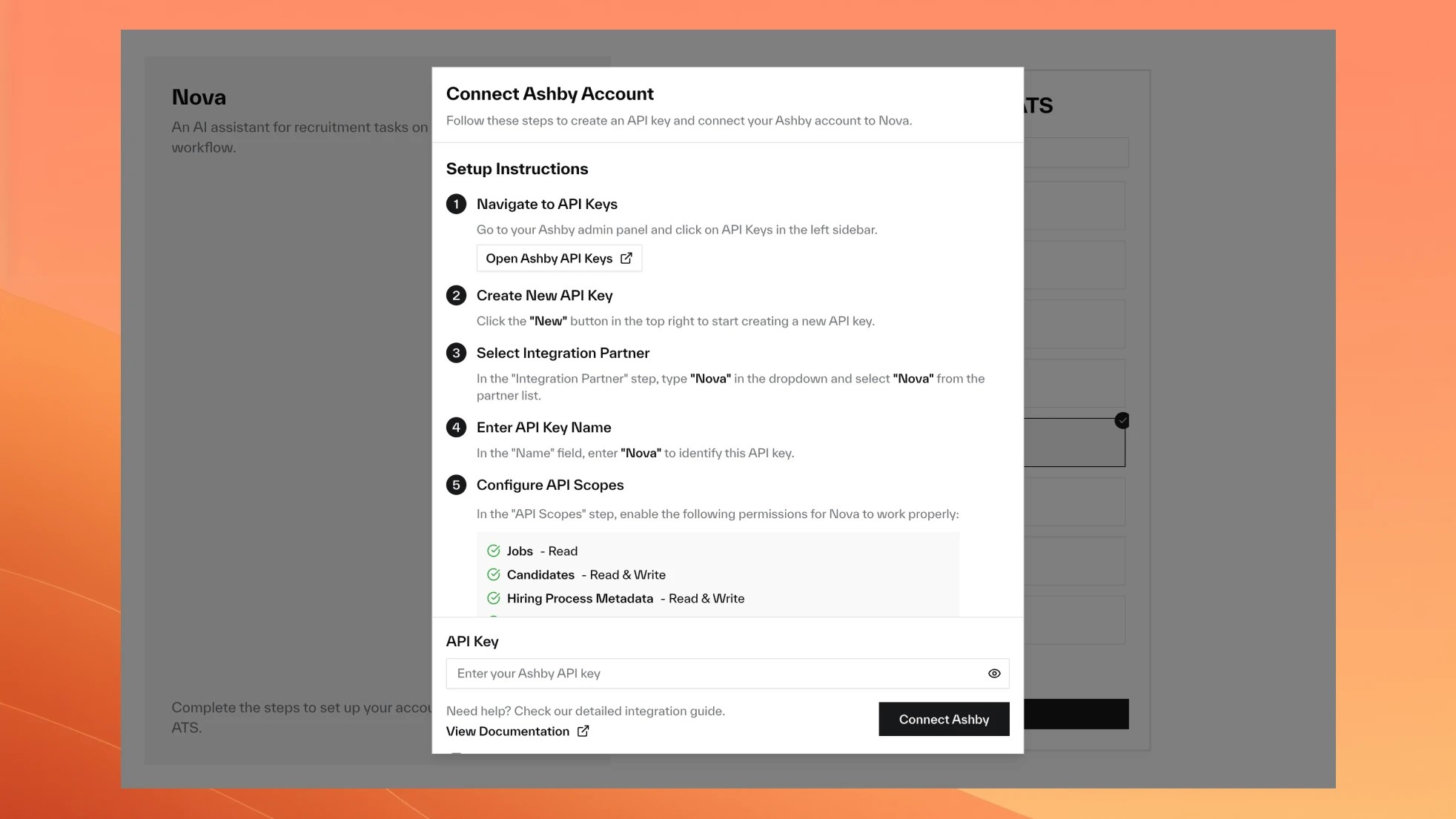
 ### Set Up Your API Key
Go to [Ashby API Keys](https://app.ashbyhq.com/admin/api/keys).
Click **"New"** in the top right corner.
Type **"Nova"** in the Integration Partner dropdown and select it.
Enter **"Nova"** in the Name field.
Enable these permissions:
* **Jobs**: Read
* **Candidates**: Read, Write
* **Hiring Process Metadata**: Read, Write
* **Organization**: Read
* **Interviews**: Read
Click **"Copy and Close"**.
Go to Settings > Integrations > Ashby and paste the key.
### Set Up Your API Key
Go to [Ashby API Keys](https://app.ashbyhq.com/admin/api/keys).
Click **"New"** in the top right corner.
Type **"Nova"** in the Integration Partner dropdown and select it.
Enter **"Nova"** in the Name field.
Enable these permissions:
* **Jobs**: Read
* **Candidates**: Read, Write
* **Hiring Process Metadata**: Read, Write
* **Organization**: Read
* **Interviews**: Read
Click **"Copy and Close"**.
Go to Settings > Integrations > Ashby and paste the key.
 ## Nova Scores in Ashby
Nova adds a **Nova Score** custom field to each candidate for sorting and filtering. You choose where the detailed assessment appears.
## Recording Method
The assessment appears as structured feedback with an Overall Recommendation field.
## Nova Scores in Ashby
Nova adds a **Nova Score** custom field to each candidate for sorting and filtering. You choose where the detailed assessment appears.
## Recording Method
The assessment appears as structured feedback with an Overall Recommendation field.
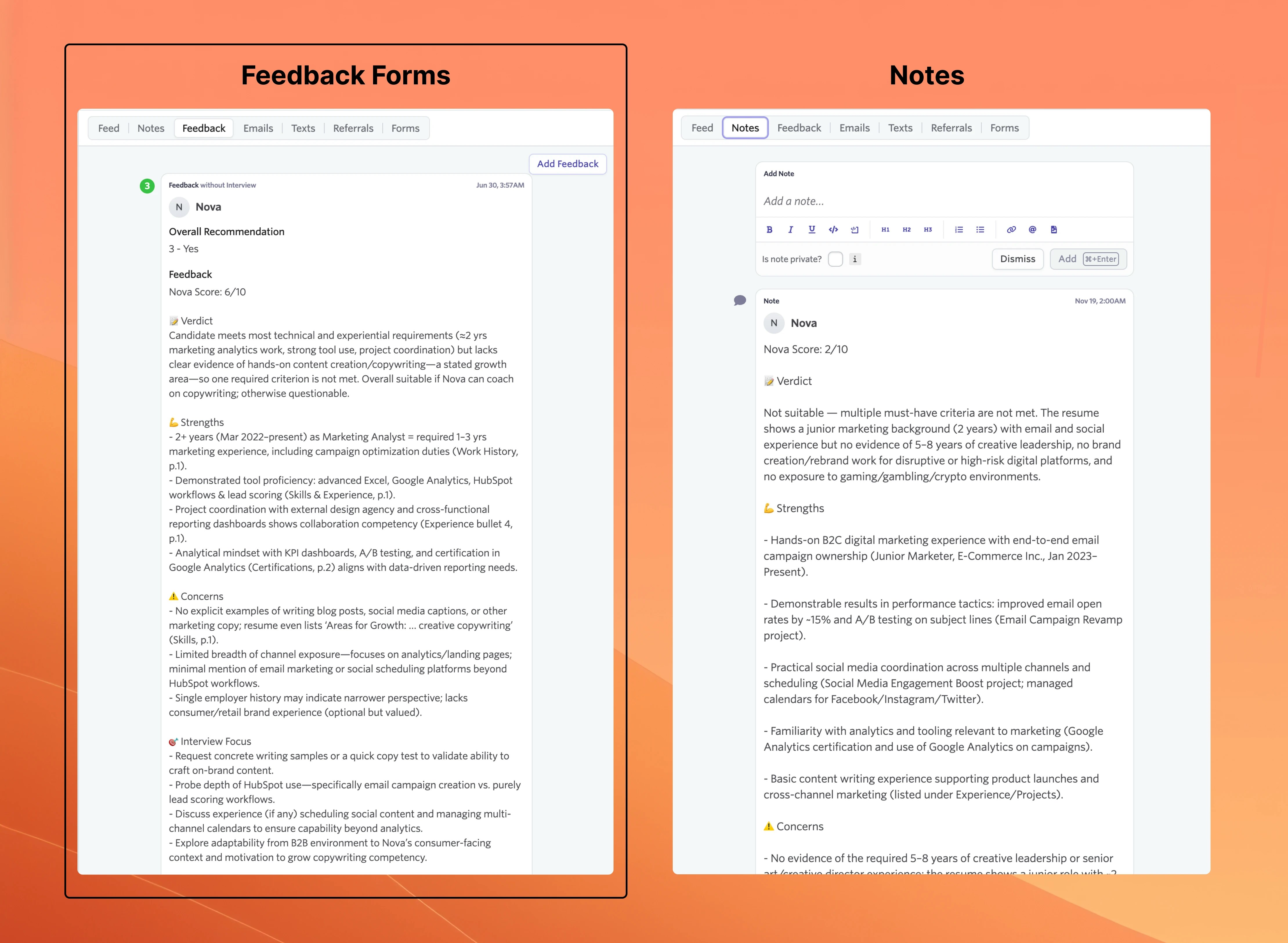 Ashby sends email notifications for feedback submissions. Disable these to avoid spam. [Notification settings](https://app.ashbyhq.com/settings/notifications)
The assessment appears as a candidate note. No email notifications triggered.
Ashby sends email notifications for feedback submissions. Disable these to avoid spam. [Notification settings](https://app.ashbyhq.com/settings/notifications)
The assessment appears as a candidate note. No email notifications triggered.
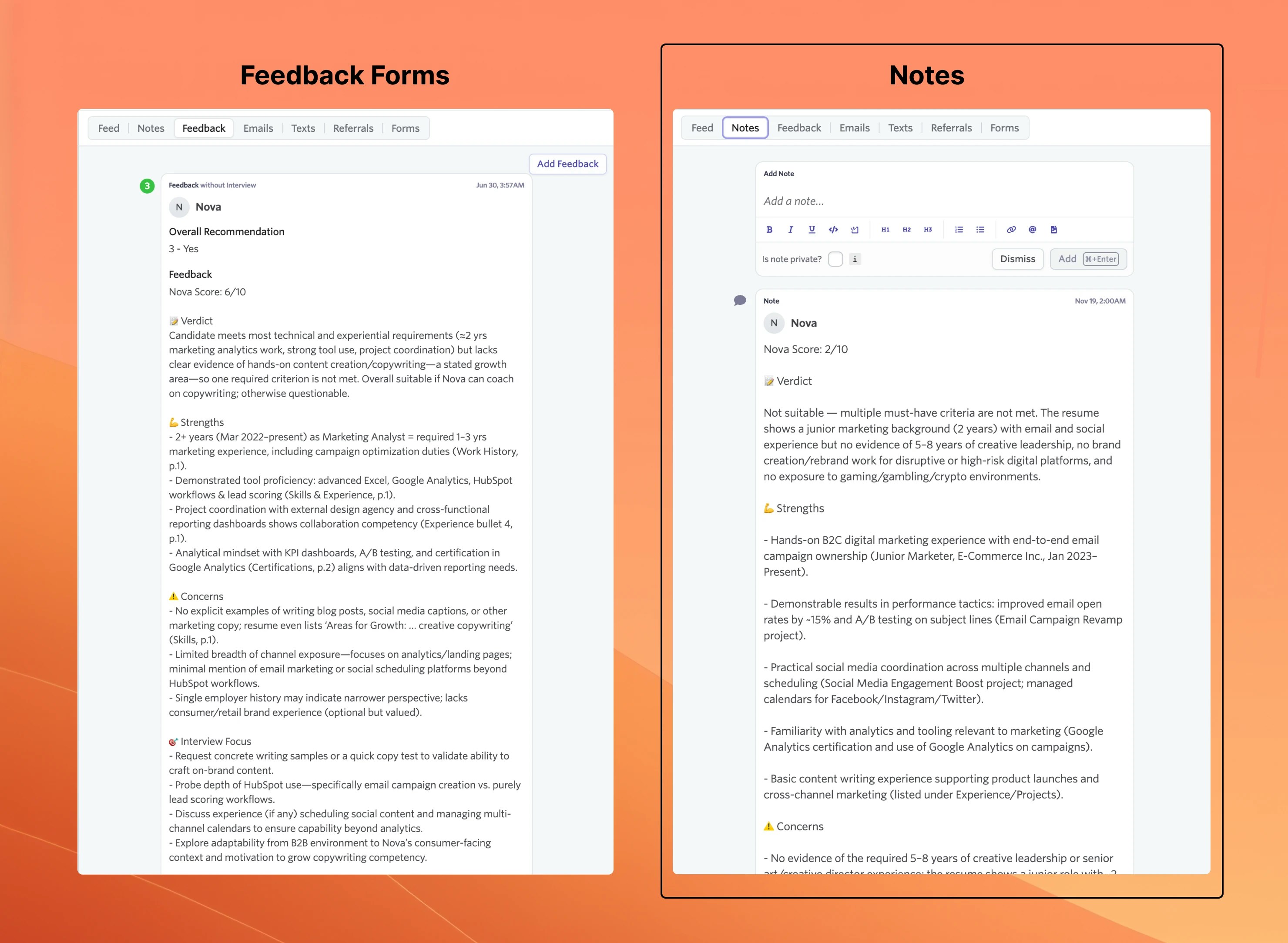 Use this if you want notifications for human feedback but not Nova's.
Configure during onboarding or anytime in Settings > Integrations > Ashby.
## Feedback Form Setup
Only applies if you chose Feedback Forms as your recording method.
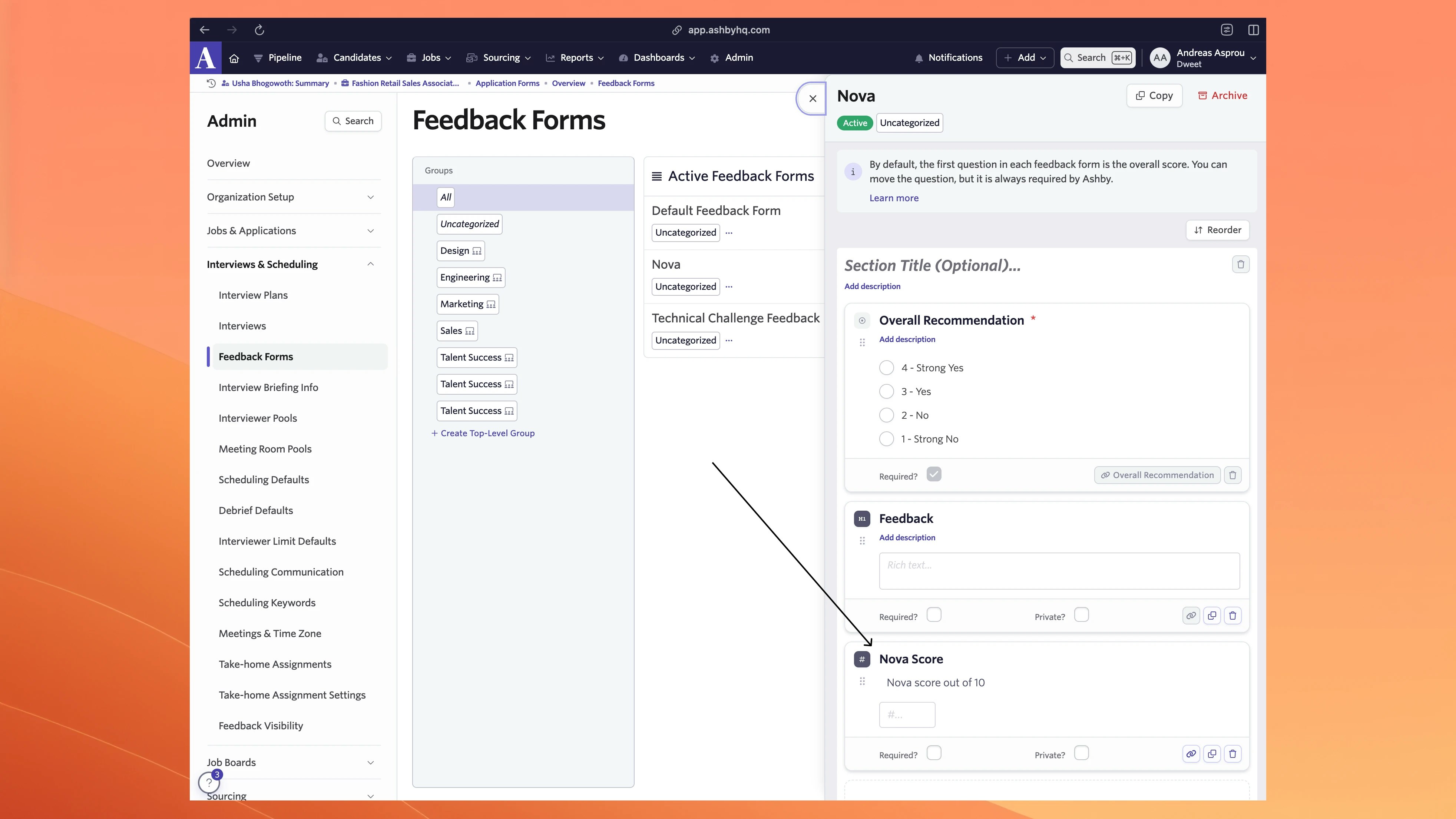
Go to [Ashby Feedback Forms](https://app.ashbyhq.com/admin/organizationsettings/feedbackForms) and create a new form.
Value Select, titled "Overall Recommendation", 1-4 scale.
Rich Text, titled "Feedback".
Number, titled "Nova Score", description "Nova Score out of 10".
Save in Ashby, then select the form in Nova settings.
### Form Structure Example
Use this if you want notifications for human feedback but not Nova's.
Configure during onboarding or anytime in Settings > Integrations > Ashby.
## Feedback Form Setup
Only applies if you chose Feedback Forms as your recording method.
Go to [Ashby Feedback Forms](https://app.ashbyhq.com/admin/organizationsettings/feedbackForms) and create a new form.
Value Select, titled "Overall Recommendation", 1-4 scale.
Rich Text, titled "Feedback".
Number, titled "Nova Score", description "Nova Score out of 10".
Save in Ashby, then select the form in Nova settings.
### Form Structure Example
 ### Score Mapping
| Nova Score | Ashby Recommendation |
| ---------- | -------------------- |
| 1-3 | 1 - Strong No |
| 4-5 | 2 - No |
| 6-7 | 3 - Yes |
| 8-10 | 4 - Strong Yes |
## Automatic Candidate Filtering
Nova skips scoring for hired and archived candidates. Only "Active" or "Lead" status candidates are scored.
### Score Mapping
| Nova Score | Ashby Recommendation |
| ---------- | -------------------- |
| 1-3 | 1 - Strong No |
| 4-5 | 2 - No |
| 6-7 | 3 - Yes |
| 8-10 | 4 - Strong Yes |
## Automatic Candidate Filtering
Nova skips scoring for hired and archived candidates. Only "Active" or "Lead" status candidates are scored.