> ## Documentation Index
> Fetch the complete documentation index at: https://nova.dweet.com/docs/llms.txt
> Use this file to discover all available pages before exploring further.
# ATS User Settings
> Configure which user account Nova uses to post scores and comments in your ATS.
By default, Nova uses your first admin user, which makes AI-generated content appear under a real person's name. Creating a dedicated "Nova" user gives clear attribution.
## Setup
Create a new user named "Nova" with recruiting team permissions.
Go to **Settings**, open ATS Settings, search for and select your Nova user, then save.
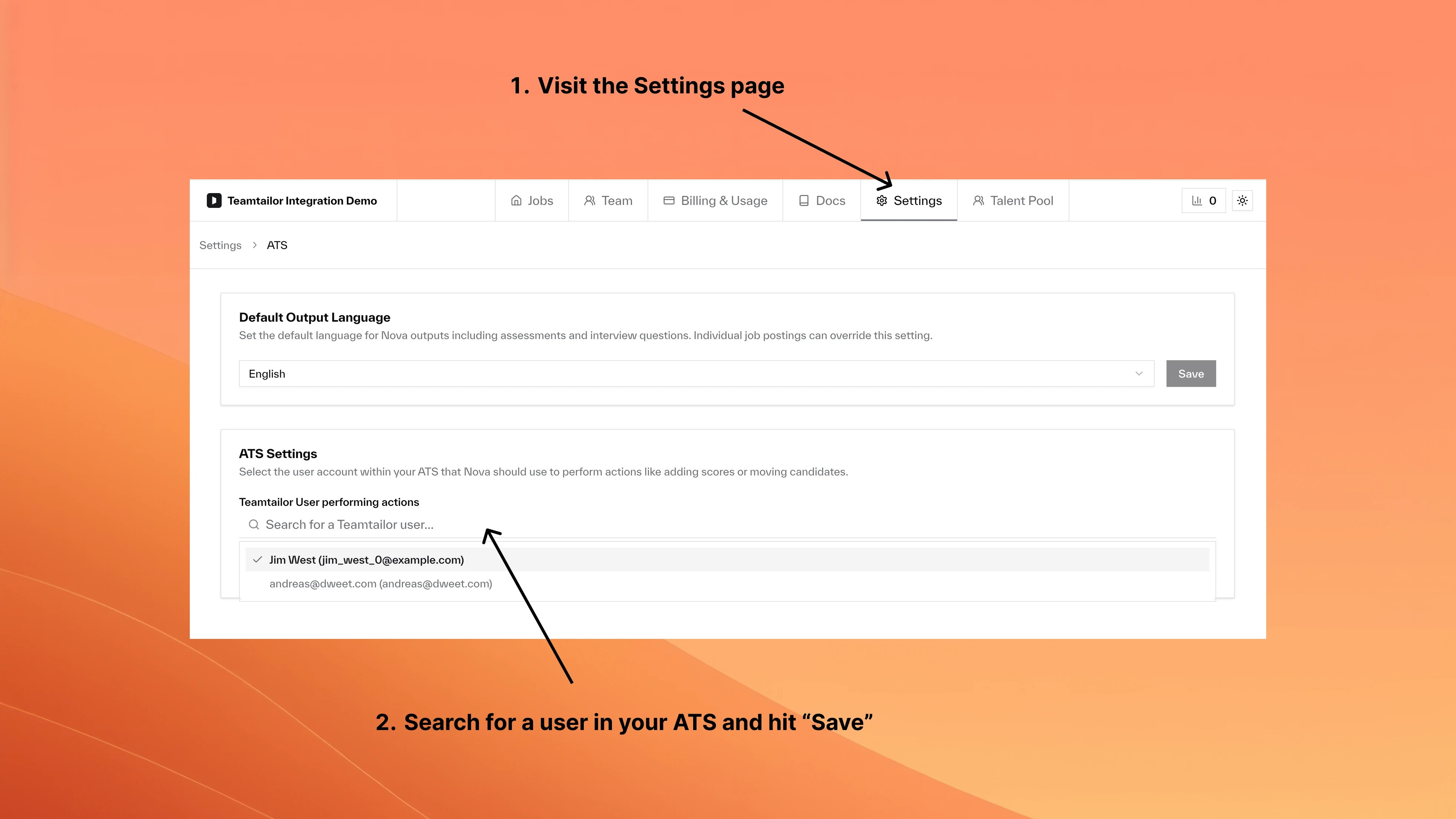 You can also select any existing team member instead of creating a dedicated user.
## Frequently asked questions
Previous content keeps its original attribution. Only new content uses the updated user.
No. The setting applies company-wide.
Manage team roles and permissions
Configure company-wide preferences
You can also select any existing team member instead of creating a dedicated user.
## Frequently asked questions
Previous content keeps its original attribution. Only new content uses the updated user.
No. The setting applies company-wide.
Manage team roles and permissions
Configure company-wide preferences